Slide Out Boxes with jQuery and CSS3

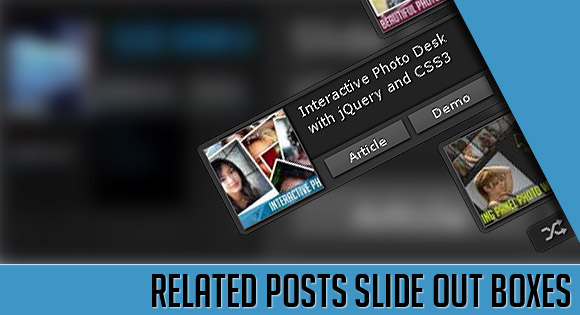
The other day we were wondering how we could show our visitors more of our works. It’s normal that in a blog older posts get forgotten and even if something might still be very interesting and relevant, it get’s lost under the pile of new stuff.

Slide Down Box Menu with jQuery and CSS3

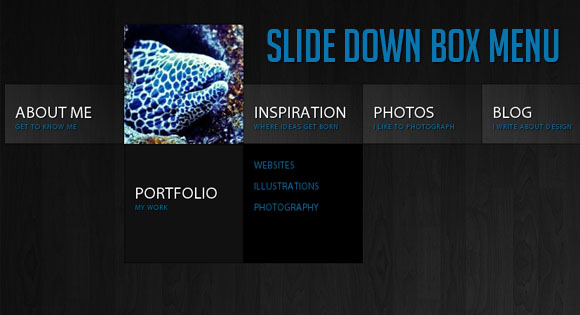
In this tutorial we will create a unique sliding box navigation. The idea is to make a box with the menu item slide out, while a thumbnail pops up. We will also include a submenu box with further links for some of the menu items.

Beautiful Photo Stack Gallery with jQuery and CSS3

In this tutorial we are going to create a nice and fresh image gallery. The idea is to show the albums as a slider, and when an album is chosen, we show the images of that album as a beautiful photo stack.

Custom Animation Banner with jQuery

In today’s tutorial we will be creating a custom animation banner with jQuery. The idea is to have different elements in a banner that will animate step-wise in a custom way.

Showing posts with label free jQuery popups. Show all posts

jQuery Latest dialog box (POPUP)

Dialog Effects

Last year we posted some inspiration for modal window effects and today we’d like to share some fresh ideas with you. Styles and trends change and this calls for different effects that fit to a modern UI. This new set contains some subtle animations and also some more fancy SVG morphing techniques for dialogs.

Please note that this was tested in latest browser versions only.

Please also note that IE11 does not seem to support vieport units in calc() which we use in some of the animation transforms.

View demo    Download source

Animated Content Menu with jQuery


View demo  Download source

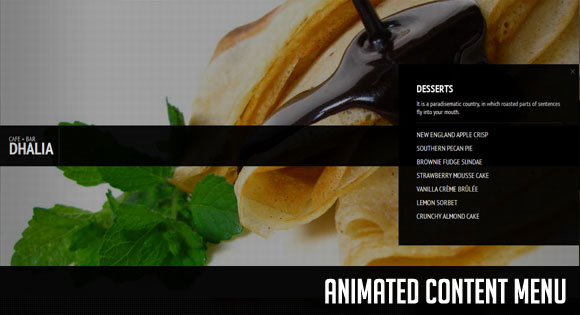
Today we will create a slick animated content menu with jQuery for a restaurant theme. The menu items will be animated and when clicked, a content area with more information will appear. Also, he background image is going to change according to which menu item was clicked.
The main idea is to have a restaurant menu with the different menu categories displayed. Each content are will have some foods/drinks listed. Once a content box is shown, the menu items are going to disappear. If we click on the close button to close the box, the menu items will be shown again.

Parallax Slider with jQuery


View demo
    Download source

Happy New Year! We will kick start 2011 with a vibrant image slider tutorial. We will make use of the parallax principle to move different backgrounds when we slide to an image in order to create some nice perspective. This will give a great depth to the whole slider when it’s in motion.
The wonderful images are taken from Tetsumo’s Flickr Photo Stream: http://www.flickr.com/photos/tetsumo/
So, let’s start!

Sweet Thumbnails Preview Gallery


View demo    Download source
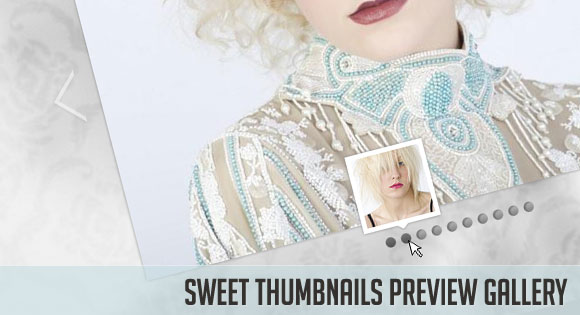
In this tutorial we will create an image gallery with jQuery that shows a preview of each image as a little thumbnail. The idea is to hover over the slider dots and make the regarding thumbnail slide into the previewer. When clicking a slider dot, the full image will slide in from the right or left side, depending on the currently viewed image.
Update: If you are interested in integrating the thumbnails preview slider you might want to check out the new post on how to use only the preview part:
Thumbnails Preview Slider with jQuery
The beautiful images are by talented geishaboy500 and can be found here on his Flickr Photostream.
So, let’s roll!

3D Wall Gallery


View demoDownload source
Today we want to share our latest experiment with you: the 3D Wall Gallery. Using the Safari browser the images of this gallery will be put into 3D perspective, when scrolling or sliding. When viewed with another browser, the gallery will be shown normally, retaining all the functionality.
For seeing the 3D effect, please try the demo in Safari.
Summarized, you can do the following things in this gallery:
  • Hover an image to see a description
  • Slide through the images using the jQuery UI Slider at the top
  • Use the mouse wheel to scroll through the images
  • Use the thumbnail previewer at the bottom to choose an image
  • Use the hash anchor for the image in the URL to get to it directly
  • Click on an image to slide it to the left (notice the hash anchor in the URL)
  • Turn it into a 3D wall when scrolling/sliding (Safari users)
  • Flipping the perspective when changing the slide/scroll direction (Safari users)
We are using the jQuery hash change plugin by Ben Alman:
jQuery Hashchange Plugin
And we are also using the jQuery Mousewheel Plugin by Brandon Aaron:
jQuery Mousewheel Plugin
The beautiful photography is by Alan Antiporda from Illusive Photography and you can find his Flickr Photostream here: Illusive Photography Photostream
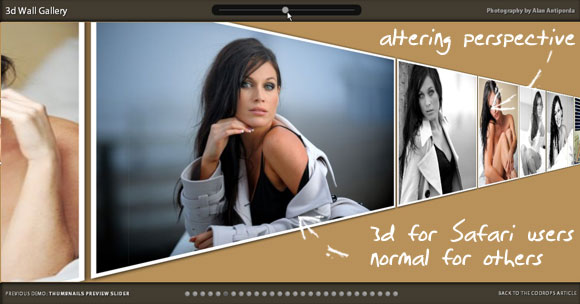
When viewed in the Safari browser, you will see the perspective happening while scrolling or sliding. When changing the direction of scrolling, you will notice that the perspective will tilt to the other side.
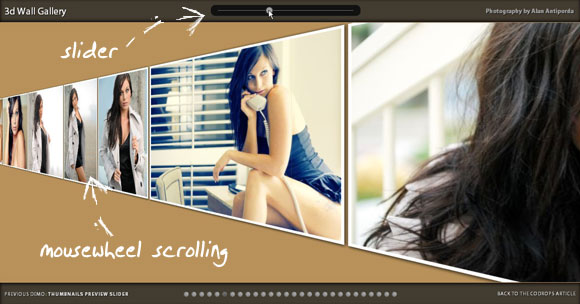
You can navigate through the images by either using the jQuery UI slider at the top or your mousewheel.

You can also use the thumbnails previewer to click on an image and get to it directly.

When hovering over an image you can see a little description at the top.
We hope that you enjoy our little experiment and find it useful!
View demo   Download source

Image Highlighting and Preview with jQuery


View demo   Download source

In this tutorial we will show you how to highlight and preview images that are integrated in an article or spread over a page. This is a nice way to allow users to view a bigger version of an image that is relevant to some context. We will highlight images on a delayed hover and offer a preview mode which will enlarge and center the bigger version of the image on the screen.

Interactive Photo Desk with jQuery and CSS3


View demo   Download source

In this little experiment we created an interactive photo desk that provides some “realistic” interaction possibilities for the user. The idea is to have some photos on a surface that can be dragged and dropped, stacked and deleted, each action resembling the real world act.
For example, if we drag a picture, it get’s “picked up” first, making it appear a little bit bigger, since it would be closer to us. Dropping it results in the picture being “thrown back” to the table, in a random rotation. Viewing all photos mirrors the action of collecting all images into a pile and viewing the first one in a none rotated way. Clicking to see the next one then, makes the previous one being thrown back to the surface. Deleting an image will make it appear as a crumpled paper ball.

Beautiful Photo Stack Gallery with jQuery and CSS3


View demo   Download source

In this tutorial we are going to create a nice and fresh image gallery. The idea is to show the albums as a slider, and when an album is chosen, we show the images of that album as a beautiful photo stack. In the photo stack view, we can browse through the images by putting the top most image behind all the stack with a slick animation.

Slider Gallery with jQuery


View demo   Download source

This tutorial is about creating a creative gallery with a slider for the thumbnails. The idea is to have an expanding thumbnails area which opens once an album is chosen. The thumbnails will scroll to the end and move back to the first image. The user can scroll through the thumbnails by using the slider controls. When a thumbnail is clicked, it moves to the center and the full image preview opens. Navigating though the images will make them slide in and out from the sides, moving the underlying thumbnails container. When the preview is closed, the full image will fade back to the thumbnail.

Full Page Image Gallery with jQuery


View demo   Download source

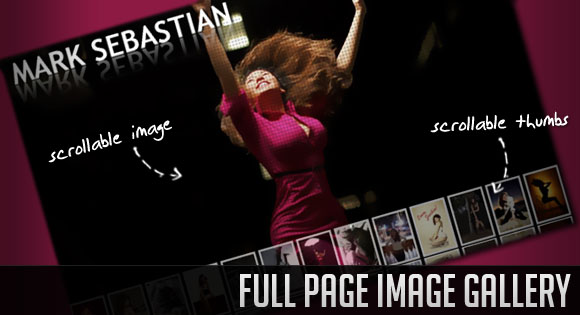
In this tutorial we are going to create a stunning full page gallery with scrollable thumbnails and a scrollable full screen preview. The idea is to have a thumbnails bar at the bottom of the page that scrolls automatically when the user moves the mouse. When a thumbnail is clicked, it moves to the center of the page and the full screen image is loaded in the background. Now the user can move up and down and the image will get scrolled automatically, giving him the opportunity to see all of the image.

jQuery Simple Modal form popup Demos

SimpleModal Demos – its goal is providing developers with a cross-browser overlay and container that will be populated with content provided to SimpleModal.
Demo :

J17 in 50+ Amazing Jquery Examples- Part1

Share

Twitter Delicious Facebook Digg Stumbleupon Favorites